Microsoft Drive Integration
NOTE: Native integrations, including the Microsoft Drive integration, are an Enterprise-level feature of Workzone. For more details on upgrading your team's Workzone license to Enterprise, please contact us at help@workzone.com.
Learn more about Workzone Enterprise.
With the Microsoft Drive integration, users can directly access files in their OneDrive or SharePoint accounts to link to or copy those files into any project, task, folder, request, or card in Workzone.
IN THIS ARTICLE
Linking a Microsoft Drive Account
To link a OneDrive or SharePoint account to your Workzone account, navigate to the User Menu (your initials or avatar in the top right of Workzone) and visit My Settings. On the settings page, find Integrations on the left.
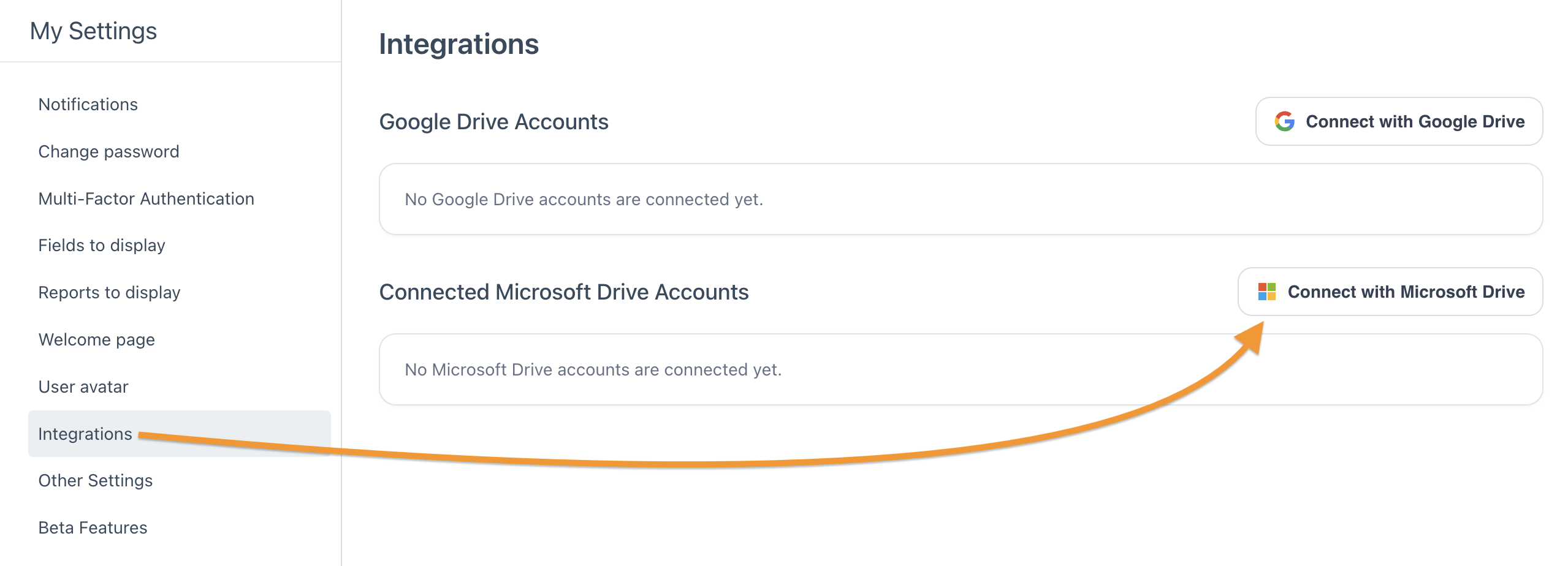
On the Integrations page, click the Connect with Microsoft Drive button. Follow the prompts and authenticate with Google in order to connect the Drive to your Workzone account.
NOTE: By default, only a Microsoft Drive account whose email address matches the email address used for a users Workzone account can be linked. There is a setting, described below, to allow a Drive account with any email address to be linked.
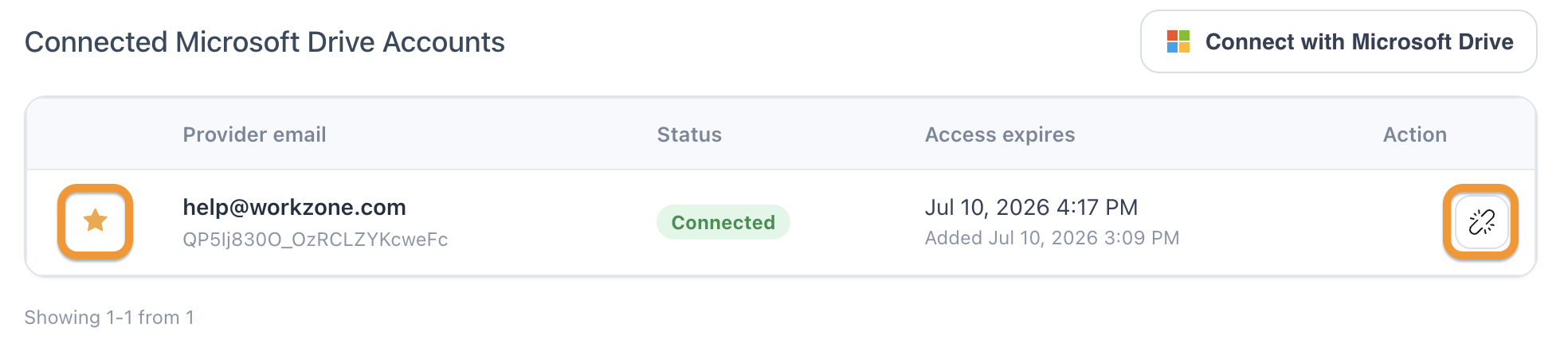
Once a Drive account is linked, it will appear in the table on the page. Clicking the star icon to the left of the linked account will designate it as a favorite. A favorited drive account will be automatically selected when accessing files via the integration. Clicking the broken link icon to the right of the account will remove the linked account from Workzone.
Copying or Linking to Microsoft Drive Files
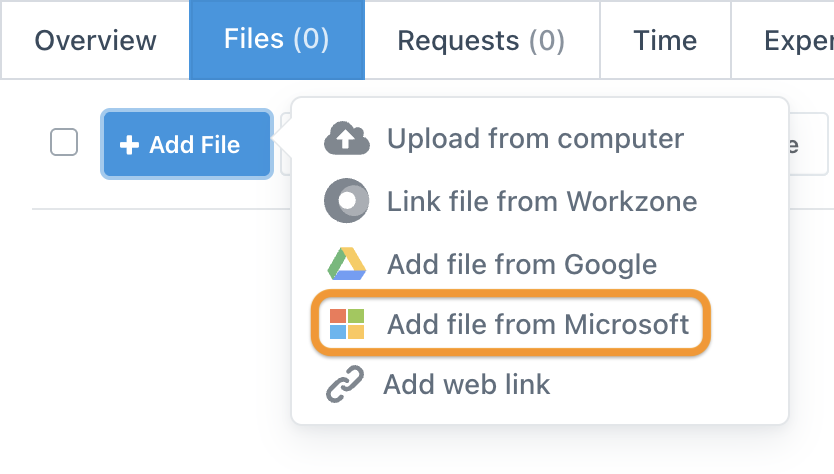
In any project, task, folder, request, or card, the Add File button will include an Add file from Microsoft option.
The window that appears will allow you to select the drive account, select the source (either OneDrive or SharePoint), and open the file browser for that account.
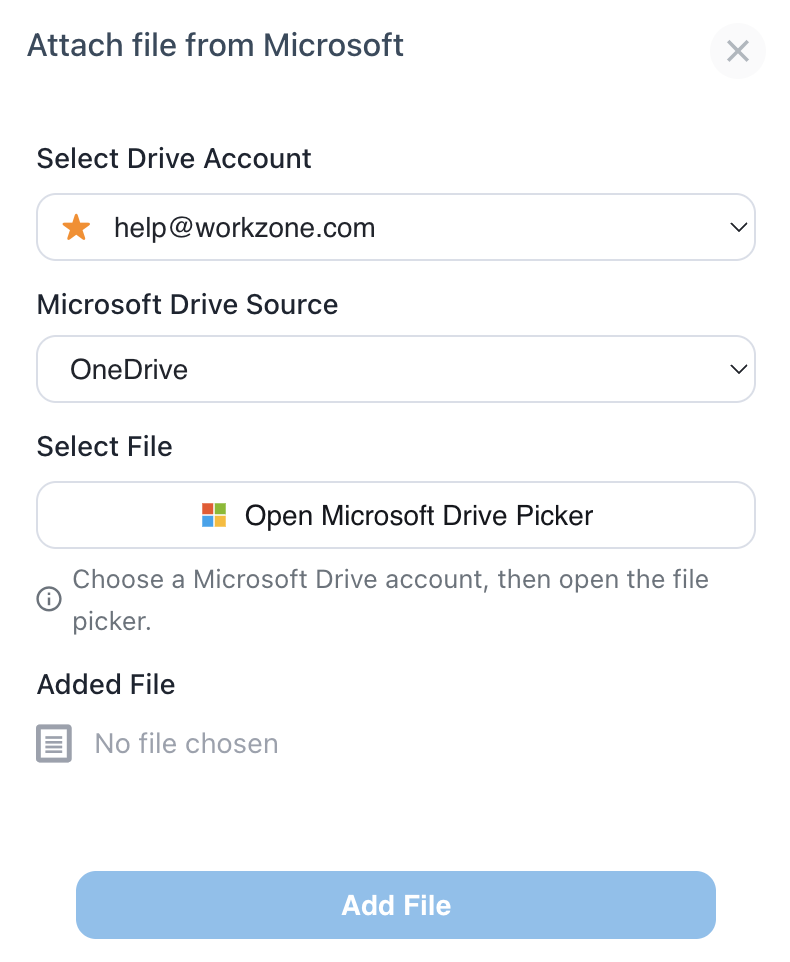
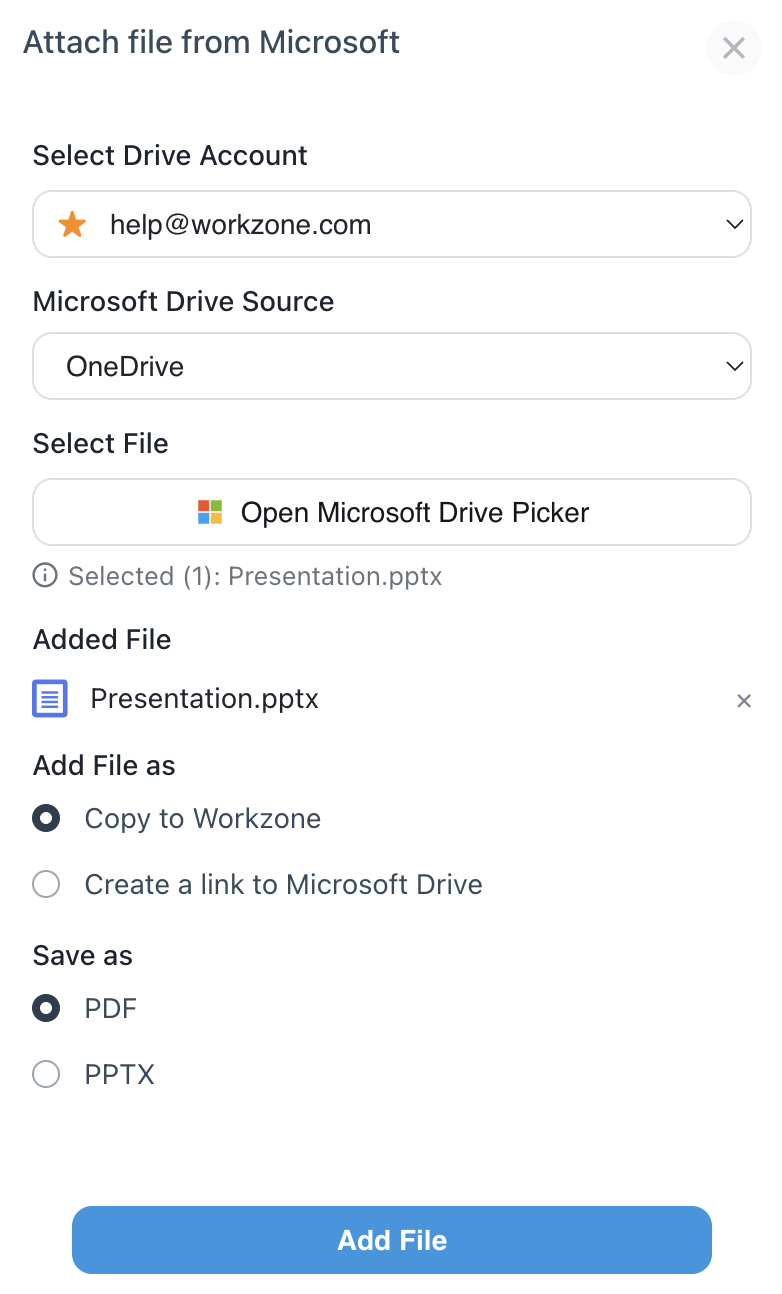
Once a file is selected from the file browser, options to either create a link or copy the file to Workzone will appear. When copying a Microsoft file (Word, Excel, or PowerPoint), options to convert the file to PDF or simply copy the native Microsoft Office file will appear. Other files can be copied in their native format. In this example, a PowerPoint file has been selected:
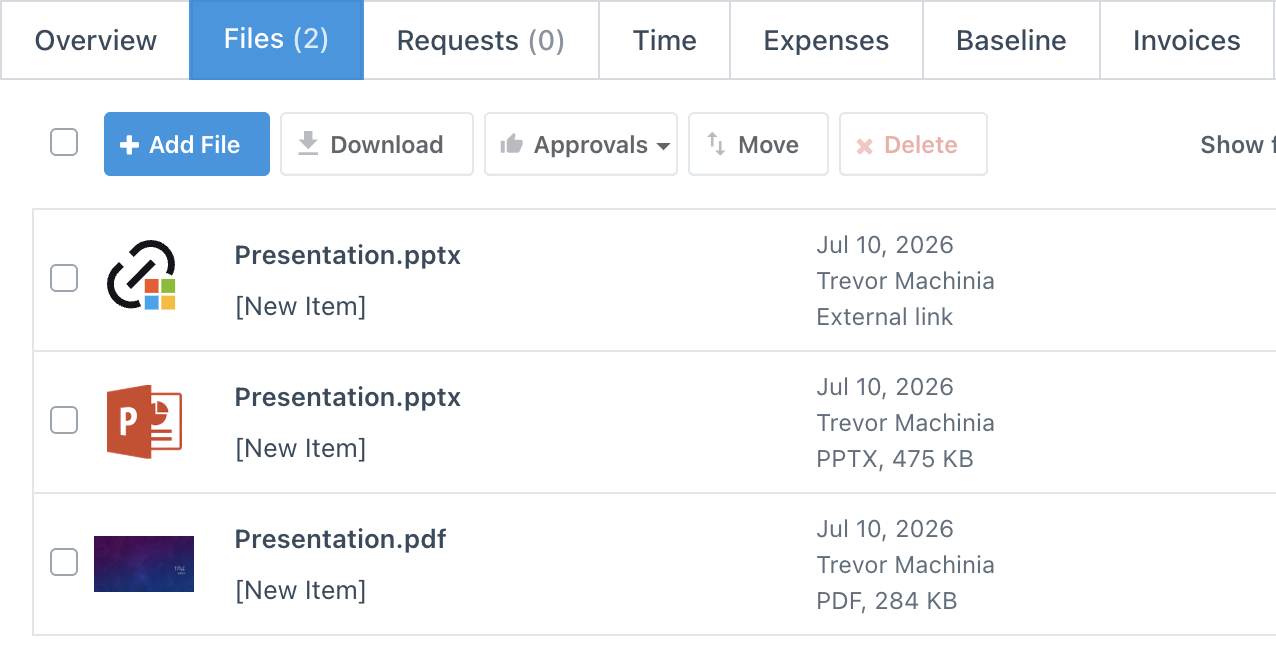
Once a file is linked or copied, it will appear in the file list just like any other file attached in Workzone. This example shows the same PowerPoint file as a linked Microsoft Drive file, a native Powerpoint file, and a converted PDF file:
Security Settings
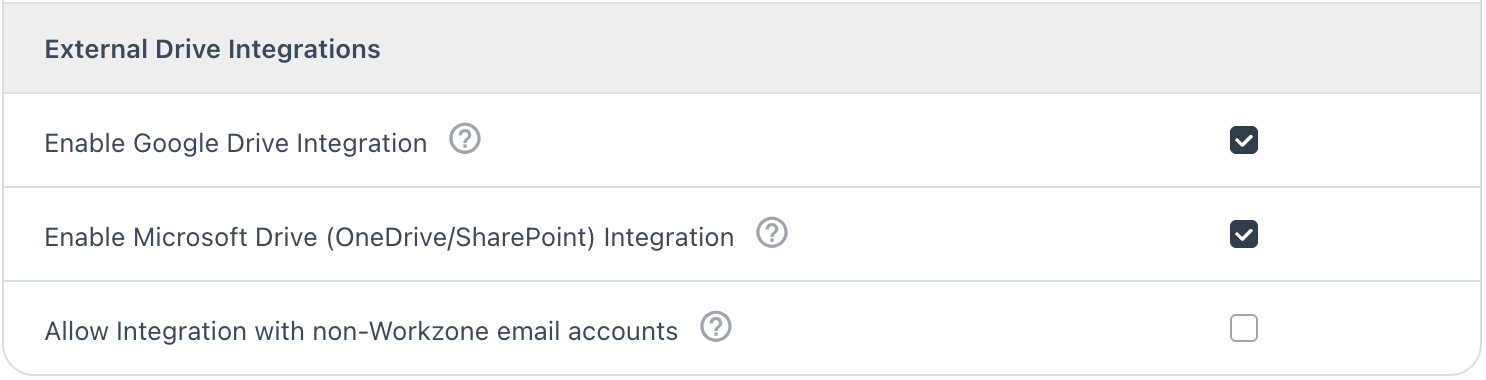
There are two security settings available to Administrators to manage how the team uses the Microsoft Integration. Admins can access these options by navigating to Settings, the gear in the top right of Workzone, and visiting Global then Security.
Here there is an option to enable or disable the Microsoft Drive integration. Disabling the integration will prevent all users from linking Drive accounts or linking/copying files into Workzone. Disabling the integration, however, will not remove any existing files or links. There is also an option to allow linking accounts with email addresses that do match the email address used for the Workzone account. With this setting disabled, only Microsoft accounts whose email address matches the email address used to login to Workzone can be used to link an Drive account.