Google Drive Integration
NOTE: Native integrations, including the Google Drive integration, are an Enterprise-level feature of Workzone. For more details on upgrading your team's Workzone license to Enterprise, please contact us at help@workzone.com.
Learn more about Workzone Enterprise.
With the Google Drive integration, users can directly access files in their Google Drive account to link to or copy those files into any project, task, folder, request, or card in Workzone.
IN THIS ARTICLE
Linking a Google Drive Account
To link a Google Drive account to your Workzone account, navigate to the User Menu (your initials or avatar in the top right of Workzone) and visit My Settings. On the settings page, find Integrations on the left.
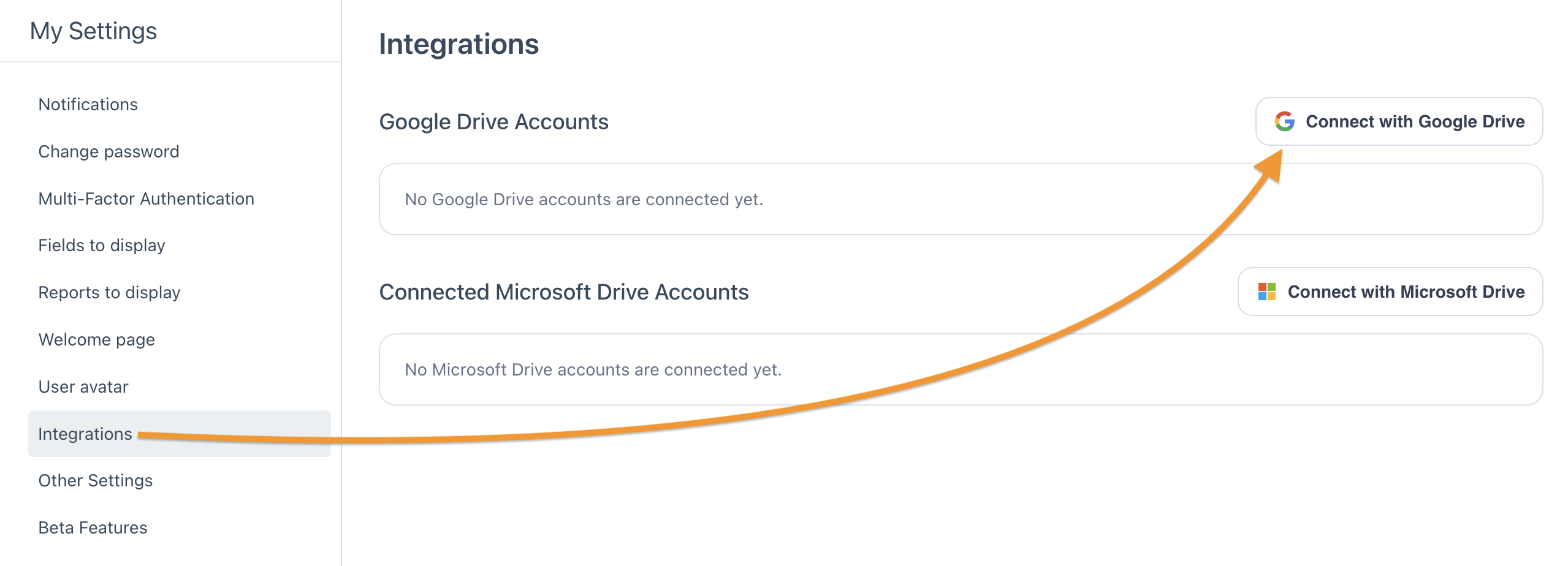
On the Integrations page, click the Connect with Google Drive button. Follow the prompts and authenticate with Google in order to connect the Drive to your Workzone account.
NOTE: By default, only a Google Drive account whose email address matches the email address used for a users Workzone account can be linked. There is a setting, described below, to allow a Drive account with any email address to be linked.
Once a Drive account is linked, it will appear in the table on the page. Clicking the star icon to the left of the linked account will designate it as a favorite. A favorited drive account will be automatically selected when accessing files via the integration. Clicking the broken link icon to the right of the account will remove the linked account from Workzone.

Copying or Linking To Google Drive Files
In any project, task, folder, request, or card, the Add File button will include an Add file from Google Drive option.
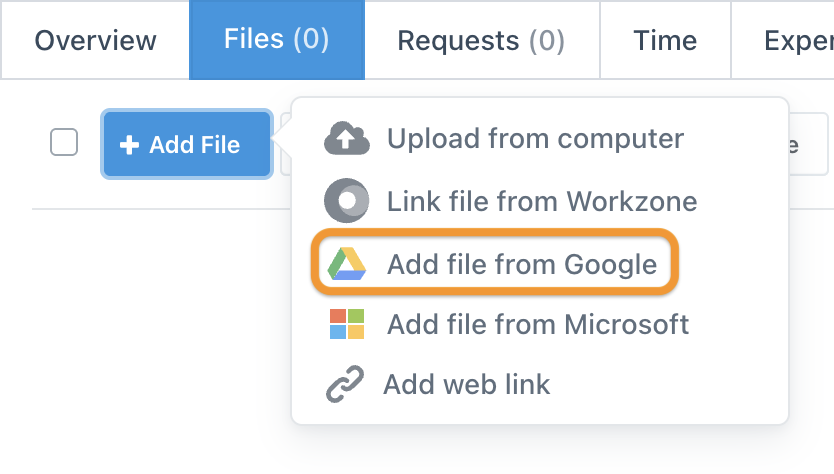
The window that appears will allow you to select the drive account and open the file browser for that account.

Once a file is selected from the file browser, options to either create a link or copy the file to Workzone will appear. When copying a Google Drive file (Docs, Sheets, or Slides), options to convert the file to PDF or the Microsoft Office counterpart will appear. Other files can be copied in their native format. In this example, a Google Slides file has been selected meaning that the option to convert to a Powerpoint file (pptx) is provided:

Once a file is linked or copied, it will appear in the file list just like any other file attached in Workzone. This example shows the same Google Slides file as a linked Google Drive file, a converted Powerpoint file, and a converted PDF file:

Security Settings
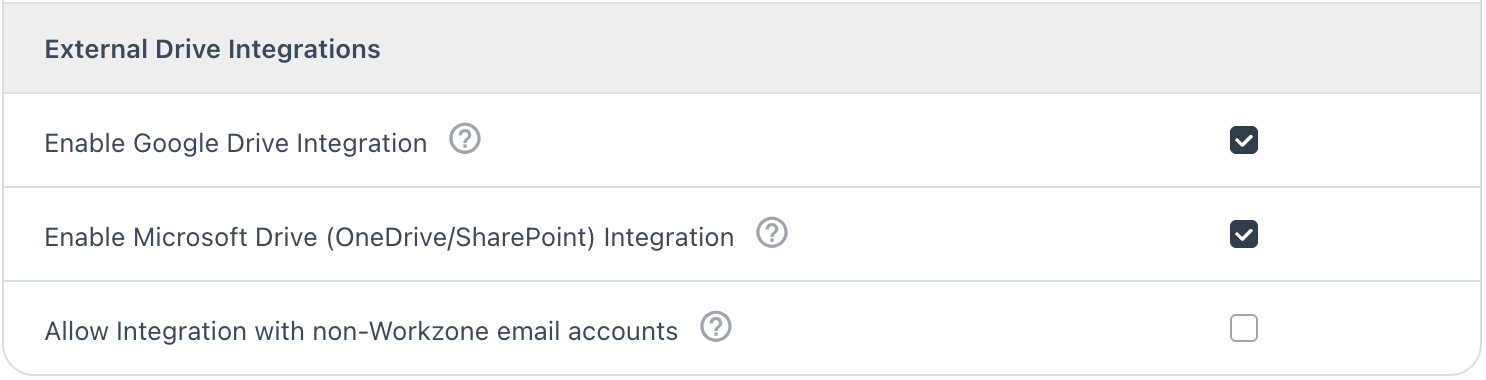
There are two security settings available to Administrators to manage how the team uses the Google Integration. Admins can access these options by navigating to Settings, the gear in the top right of Workzone, and visiting Global then Security.
Here there is an option to enable or disable the Google Drive integration. Disabling the integration will prevent all users from linking Drive accounts or linking/copying files into Workzone. Disabling the integration, however, will not remove any existing files or links. There is also an option to allow linking accounts with email addresses that do match the email address used for the Workzone account. With this setting disabled, only Google accounts whose email address matches the email address used to login to Workzone can be used to link an Drive account.