
Help Center Assistant
The Help Center Assistant gives you quick access to Workzone answers, product updates, learning resources, feedback, and support—all in one place.
Accessing the Help Center Assistant
The new Help Center Assistant can be accessed in two ways:
-
Select the floating Help Center icon that appears, by default, in the bottom right hand corner of the Workzone interface. This floating icon can be dragged to different areas of the interface if desired.

-
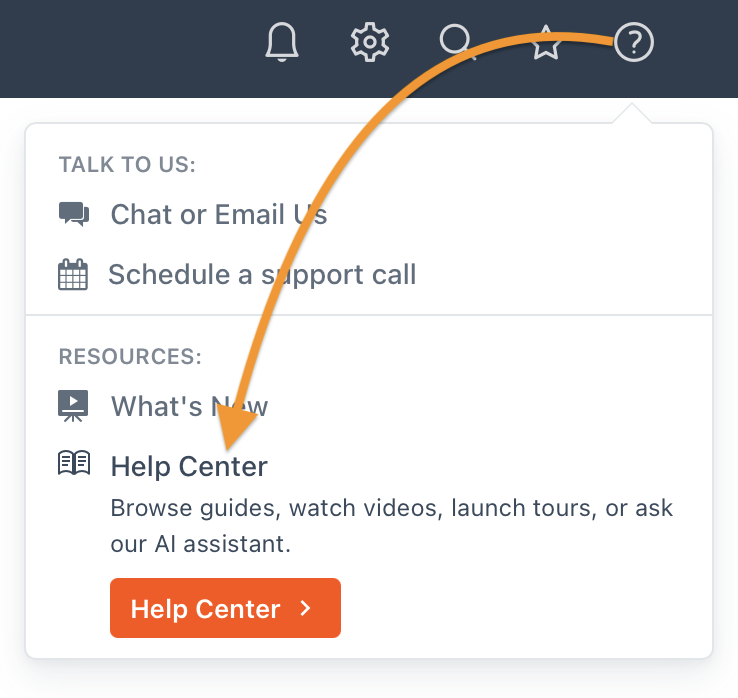
Click the "Help Center" option in Workzone's help menu in the top right of the Workzone interface.
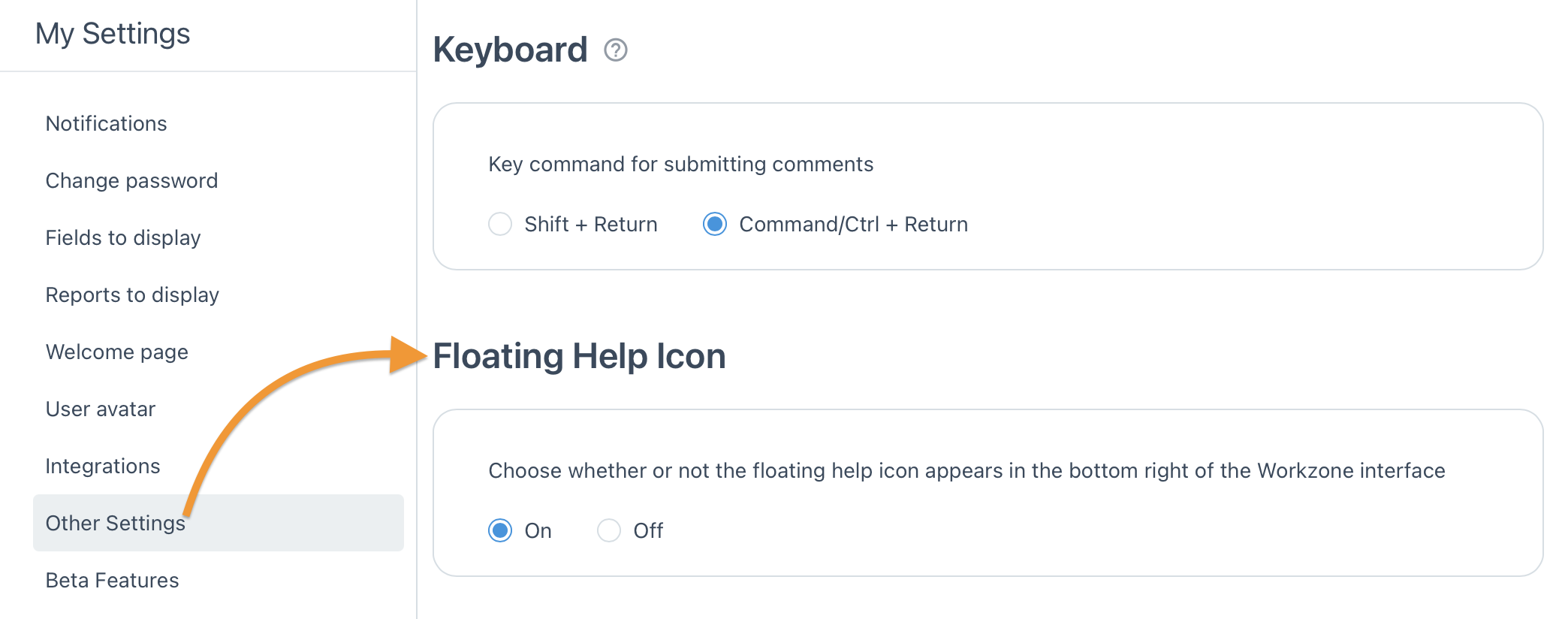
If you prefer a cleaner workspace, you can turn off the floating Help Center icon in My Settings → Other Settings. If the floating icon is disabled, it can still be accessed via the help menu in the top right of the interface.
Using the Help Center Assistant Features
Ask a question
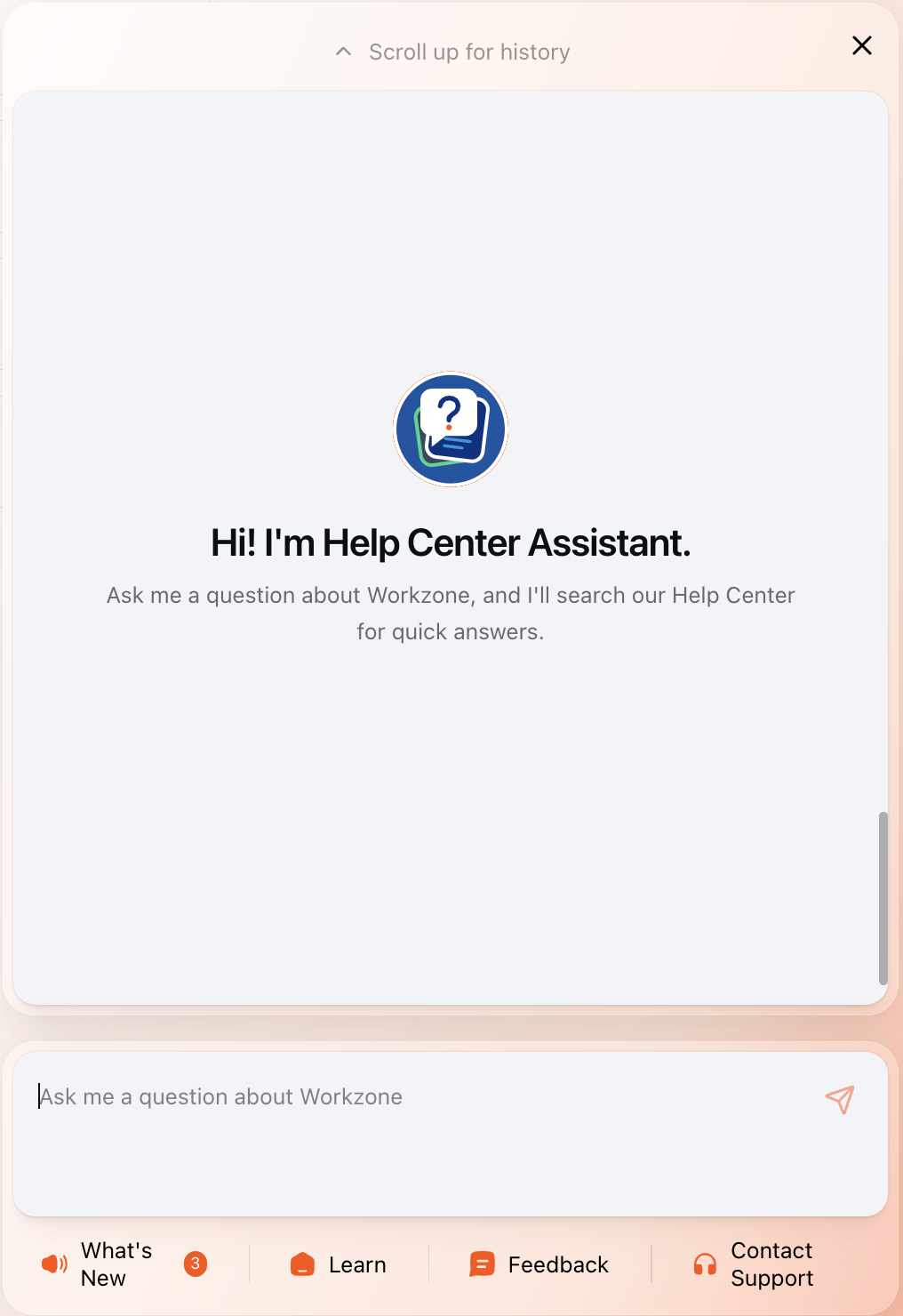
Enter a question in the Ask me a question about Workzone field, then select the send arrow. The assistant searches Workzone’s Help Center and returns a quick answer. Scroll up to review your recent question history.
See what’s new
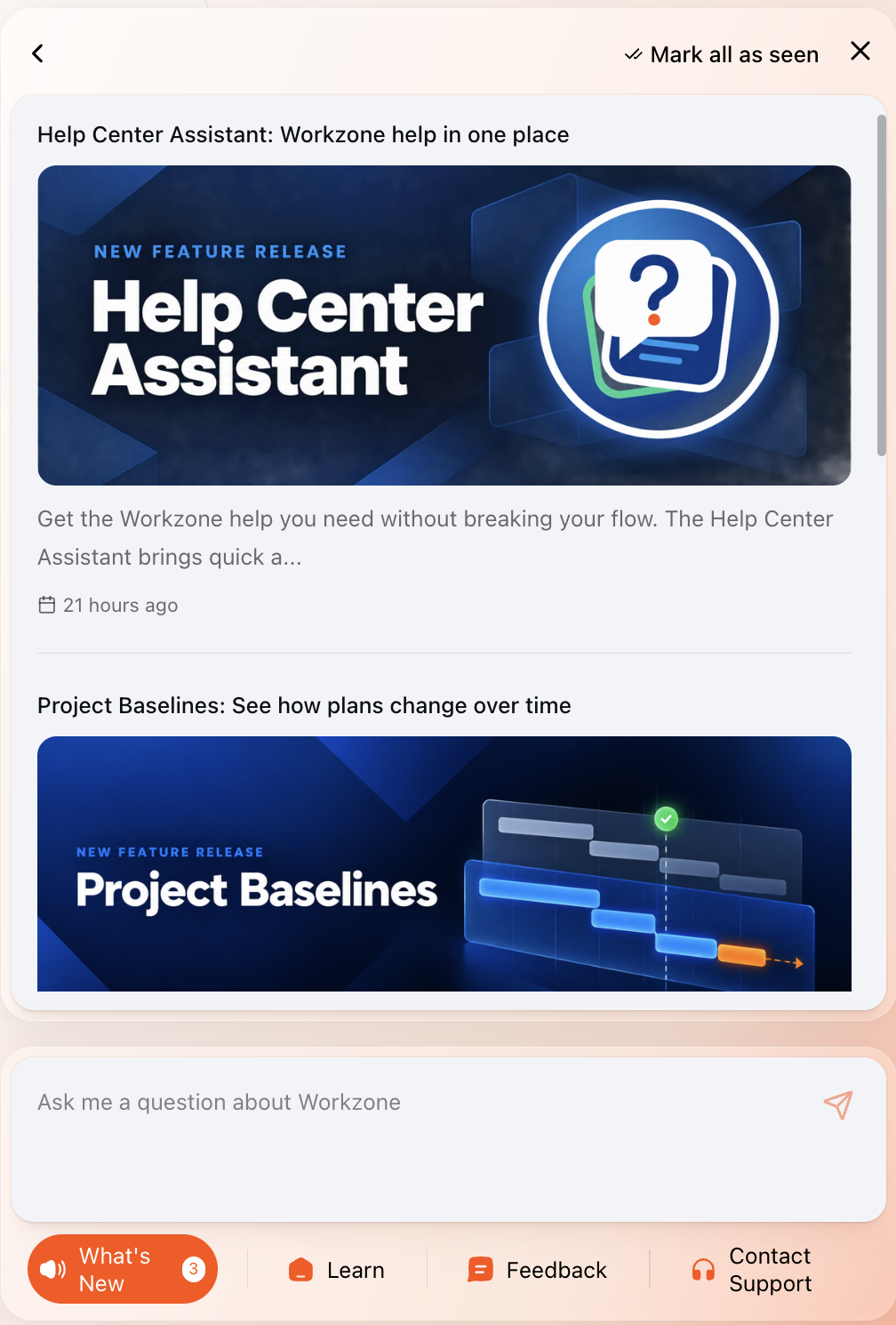
Select What’s New to browse recent product releases and announcements. Along with orange badges on the help menu icon and the floating help center icon, a numbered badge at the bottom of the help center shows how many items are new. Clicking on an item to read it will mark it as read. Additionally, you can select Mark all as seen at the top of the help center which will remove the "What's New" badges.
Find learning resources
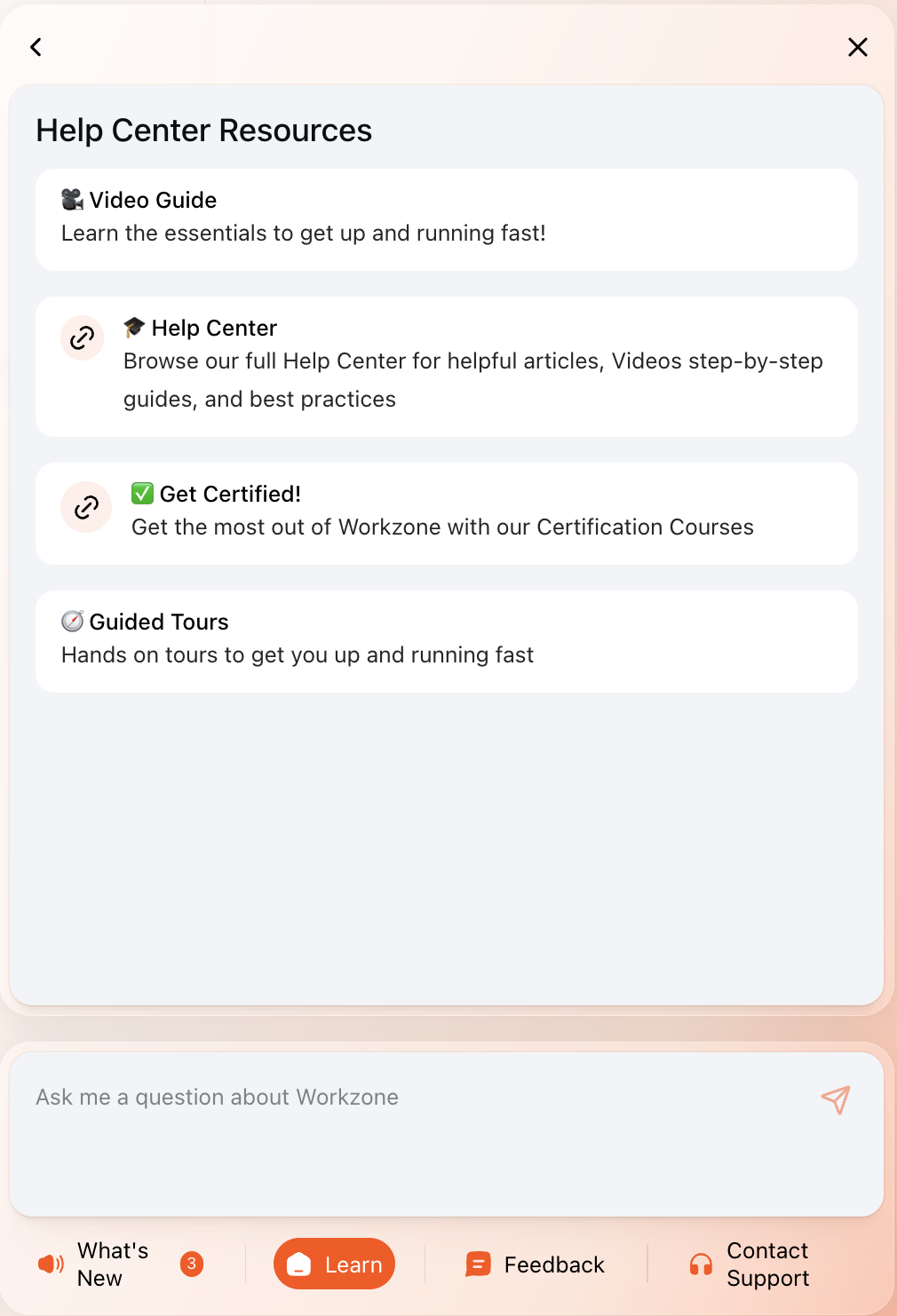
Select Learn to open guided tours, the video guide, Help Center articles, and Workzone certification courses.
Send feedback
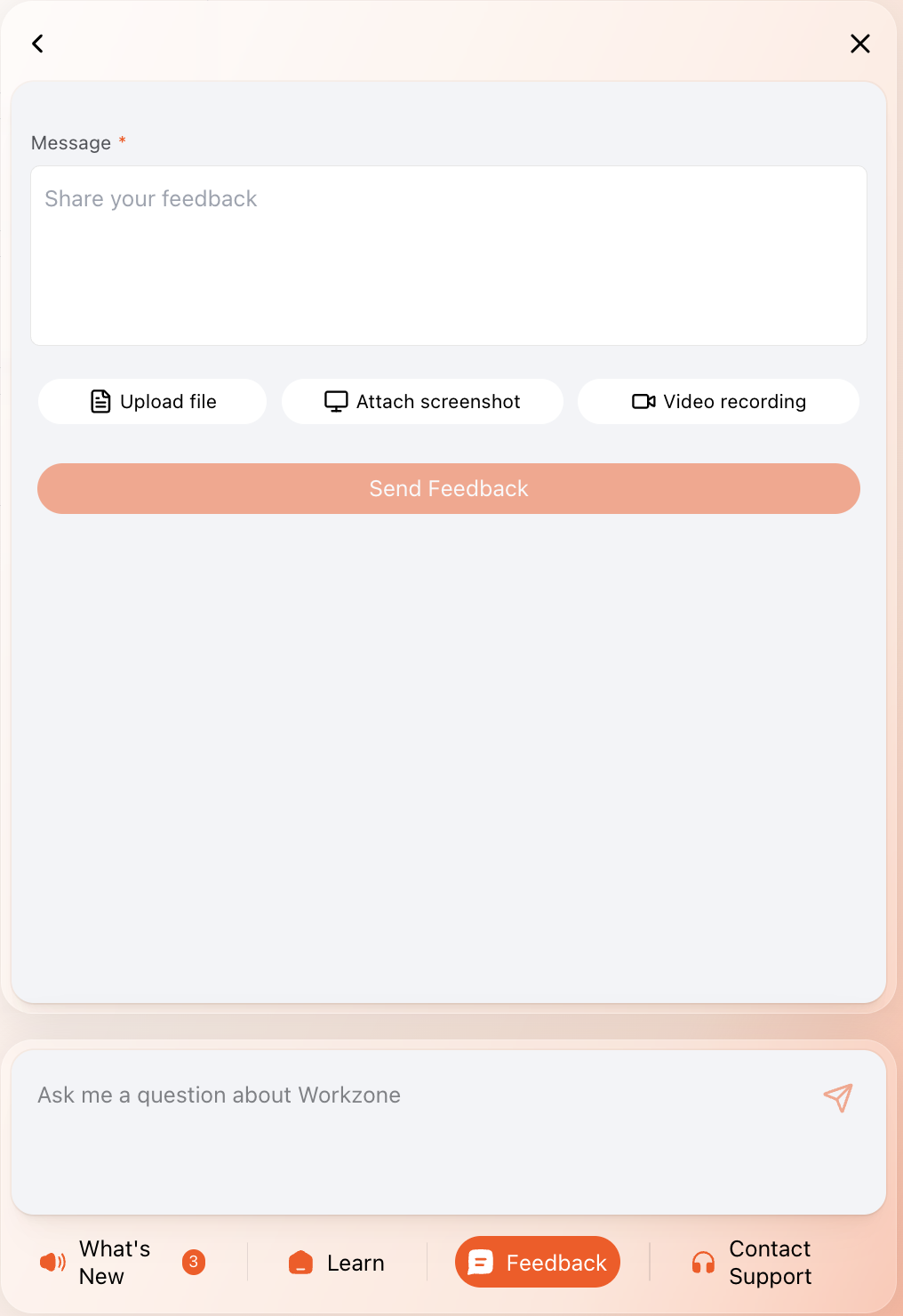
Select Feedback, enter your message, and optionally upload a file, attach a screenshot, or record a video. When you’re ready, select the button to send your feedback.
Contact Support
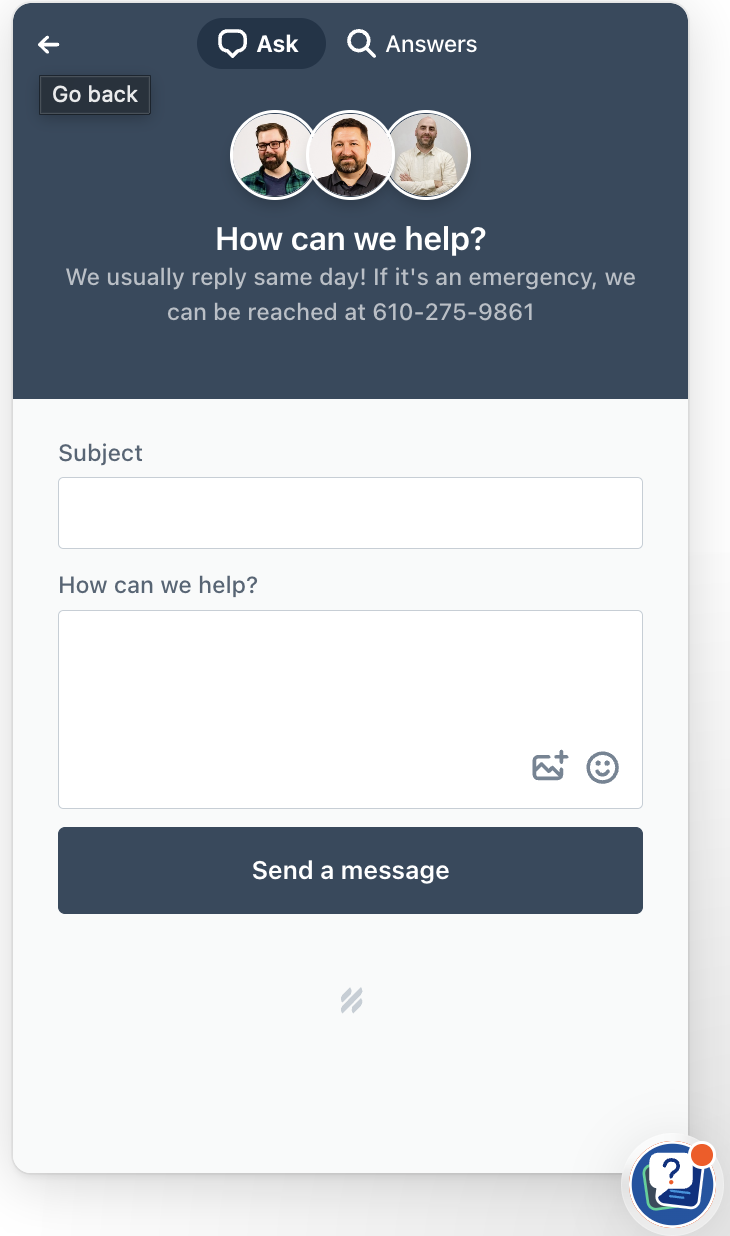
From the bottom navigation, choose the Contact Support tab, describe your issue or question, and select Send. A Workzone team member will respond, typically under 30 minutes.
Use the back arrow to return to the previous view, or select the X to close the Help Center Assistant.